


Sticker Maker & Funny Emoji
4.91.00 Reviews
App Specs
- Version
- 1.0.1
- Updated On
- License
- Free
- Downloads
- 100,000+
- Developer
- SHINK COMPANY
- Categories
- Personalization
- Platform
- Android
Screenshots
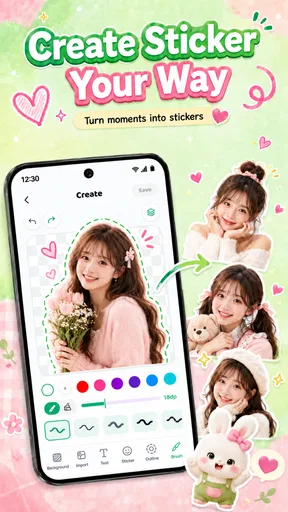
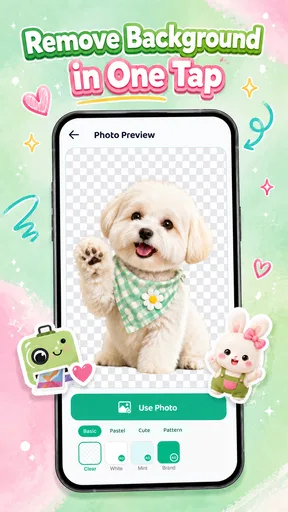
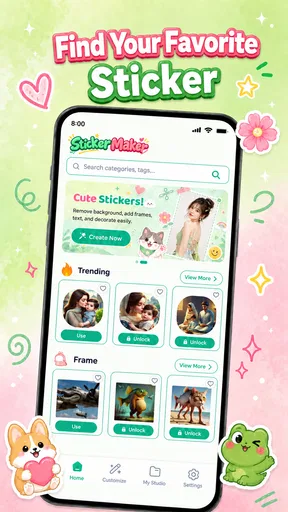
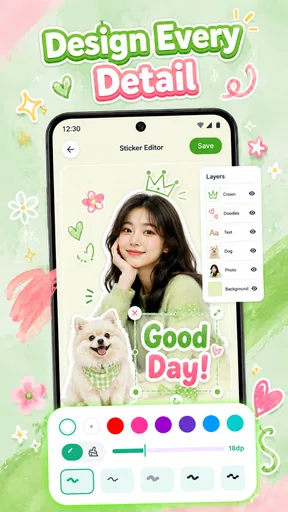
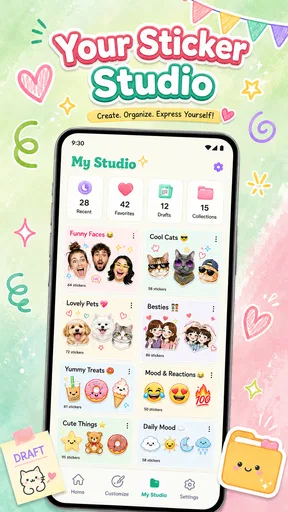
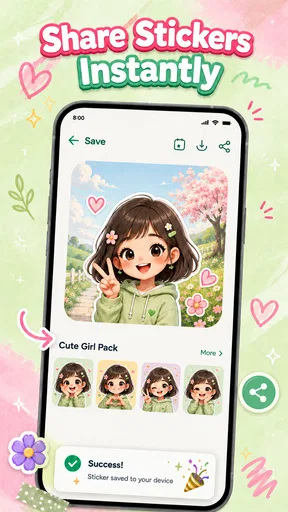
 Analysis by AppCompare
I like sticker apps most when they shorten the trip from “that picture would make a good reaction” to something I can actually send. Sticker Maker & Funny Emoji is aimed at that quick, personal kind of creativity: it lets you build custom stickers, remove image backgrounds automatically, and make memes. That combination gives it a more practical focus than an app that only offers a shelf of ready-made emoji.
It is a free personalization app from SHINK COMPANY, rated for Everyone, and its current version is 1.0.1. The app has a 4.9 average from around 925 ratings and has passed 100K installs. Those figures suggest that people are responding well to it, but they don’t tell me whether its editing tools fit every workflow. My main recommendation is to think of it as a lightweight way to turn images and jokes into shareable stickers, not as a full graphics studio.
A good first test before you commit
I would begin with an image that matters enough to be fun but not so important that a rough cutout would be frustrating: a familiar pet pose, a friend’s exaggerated expression, or an object that has become a chat-group joke. That gives you a useful test of the whole process, from choosing a source picture to judging the finished sticker at its real viewing size. If the result works in an actual conversation, then it is worth making more.
There is also a sensible privacy habit here: choose images you are comfortable using for a personal creative project, and think carefully before turning someone else’s photo into a joke. A sticker can travel farther than the original conversation, especially when it becomes a handy reaction people keep reusing. I would ask permission before making or sharing a teasing cutout of someone who might not enjoy becoming the group’s running gag.
Making a sticker without turning it into a project
I’ll focus on the app’s central appeal: turning a familiar image into a usable sticker without letting a quick creative idea become a drawn-out editing task. I’d start with a clear photo and one simple reaction, then judge the result at the size it will actually appear in a chat. That small test also makes it easier to see where a more hands-on editor might be worth the extra effort.
Where the app’s appeal lies
The most useful part of this app’s pitch is the pairing of a background eraser with sticker creation. A sticker often looks clumsy when it carries the whole rectangular photo behind the subject. Removing that backdrop can make a face, pet, object, or cutout feel much more like a deliberate reaction. It also makes the result easier to reuse in different conversations, because the sticker can sit over a chat background instead of bringing its own image box along.
Automatic removal is especially handy when I want to make something on the spur of the moment. Imagine a friend sends a funny photo of their dog, and the group chat immediately turns it into a running joke. A cutout sticker can capture the expression without asking me to open a separate image editor, trace the outline by hand, export a transparent file, and then import it elsewhere. That is a small workflow win, but it is exactly the kind of convenience that makes a creative app worth keeping around.
Worth Reading Before You Choose

Flipboard Shows What News Apps Must Do Beyond the Feed

Switching to Android Auto Means Rethinking Your Driving Routine

Google Calendar Makes a Crowded Week Easier to Manage

Ludo King Makes the Most of the Minutes Between Plans

Baby Panda World Brings Quick Play to Modern Phones, but Its Game Library Feels Busy

ESPN’s Live Game View Makes Following Close Games Easier
The meme-making side gives the same source image another use. A cutout can become a character, while a caption turns the moment into a punchline. I would still take a beat to check whether text is readable at sticker size: a phrase that looks fine on a large preview can become cramped when reduced in a chat. Keeping the wording short and the subject clearly framed is a more reliable approach than trying to fit a whole joke into one tiny graphic.
A useful workflow for better results
For a clean result, I would start with a photo where the subject stands apart from its surroundings. Automatic background removal can save time, but it is not a substitute for a well-chosen image. Hair, transparent objects, busy backgrounds, and subjects that blend into similar colors are naturally harder to separate. If an outline looks rough, trying a clearer source image may be faster than repeatedly adjusting a difficult one.
Before making a whole set, I would test one sticker in the conversation where I intend to use it. Chat interfaces shrink images, and fine details that seem clear on a phone screen can disappear at a smaller display size. A bold silhouette, an expressive face, and a short caption tend to survive that reduction better than delicate details or long text. This quick check can prevent a batch of stickers from looking polished in the editor but unreadable in use.
It also helps to make a small themed group rather than a pile of unrelated images. For example, I might prepare a few reactions from one set of photos for a family chat: a greeting, a laugh, and a playful “not sure.” Keeping a consistent visual style makes the stickers feel like a set, and it is easier to find the right one later than to scroll through many near-duplicates. That is a practical habit rather than a special feature, but it makes a personal sticker collection much more useful.
How it compares with other ways to make stickers
Compared with using a general photo editor, the main attraction here is the direct emphasis on turning an image into a sticker or meme. A full editor may offer more precise selection, layer control, typography, and finishing tools. Those extra controls matter if I am preparing graphics for a shop, a public page, or a carefully branded project. For a quick joke or personal reaction, though, they can make a simple task feel like work.
Compared with ready-made sticker packs, creating your own gives you material that is personal to your friends, pets, and shared references. The trade-off is obvious: a premade pack is ready instantly, while a custom one requires choosing images and making edits. If I want a polished collection of popular reactions without doing any preparation, a pack-based option is the easier choice. If I want a sticker of a specific moment that only my group understands, this app’s custom-making focus is more appealing.
And compared with manually cutting out images in a separate tool, automatic background removal is the convenience to try first. It is not necessarily the best route for every image. When the edge of a subject must be exact, or the picture has a complicated background, a dedicated editor with more hands-on selection can be the better choice. I see this app as a quick creative shortcut, not a promise that every source photo will become a flawless cutout in one tap.
What the current release tells me
The present version is 1.0.1, and the app was released on August 22, 2026. Those are useful points of reference for someone deciding whether to start using it now: this is an early version of the product, not a long-established editor with a long release history. I would judge it by the core tasks it is built around—making stickers, cutting out backgrounds, and building memes—rather than assume it already covers every advanced editing need.
There is no verified earlier feature history to compare against, so I would not claim that this release introduced a particular tool or fixed a specific problem. For someone already using it, the sensible approach is to treat 1.0.1 as the current baseline and keep personal originals of important images. That way, a sticker project remains reproducible even if the person later changes apps or wants to edit the source in a more capable program.
For a new user, the early version status is a reason to keep expectations grounded, not an automatic reason to avoid it. The app already has a strong average rating, but a high score cannot tell me how well every kind of photo will cut out or whether the available editing depth will satisfy a particular creator. I would try it first with a casual image that is easy to replace, then decide whether its workflow is dependable enough for a larger collection.
Costs, audience, and everyday fit
The app is free to start, with in-app purchases ranging from $2.99 to $7.99 per item. That makes it reasonable to explore the basic idea before spending, but I would check what an optional purchase covers before buying it. The value depends on how often I make stickers and whether the paid item addresses a real need in my own workflow. Someone who only wants a few one-off reactions may have little reason to spend, while a frequent creator may care more about the options available to them.
Its Everyone age rating makes the intended audience broad, and the subject matter—personal stickers, funny images, and memes—can suit casual use across ages. That does not mean every image or caption is automatically appropriate for every recipient. I would still think about where a sticker will be shared, especially in a school, family, or work chat. A private joke can read very differently when it leaves the group that understands it.
This is a good fit for people who enjoy making their own reactions, want to turn a favorite photo into a cutout, or like sending memes that feel specific to their circle. It is less suited to someone who needs exact edge refinement, extensive typography controls, or a professional design workflow. It may also be unnecessary if ready-made packs already cover the reactions you use. Choosing based on that distinction is more helpful than expecting one small app to replace both a sticker library and a full image editor.
What I would watch before building a big collection
The main remaining question for me is consistency across different images. A clean portrait or a pet against a plain wall is a forgiving test; wispy fur, glass, or a crowded scene is not. I would use a few varied photos before committing time to a large sticker set. If the automatic cutout handles the images I actually care about, the app has earned a place in my routine. If not, a manual editor is the safer choice for those difficult pictures.
I would also pay attention to the practical side of reuse: how easy it feels to locate a finished reaction, whether the meme text stays legible on a phone, and whether the editing process remains quick after the novelty wears off. Those details determine whether a sticker maker becomes a regular tool or just a one-afternoon experiment. They are worth testing with the same chat and image types I use most, rather than judging only from a single perfect sample.
Who will get the most from it
For someone who mostly chats with the same small group, personal stickers can be more useful than a huge library of generic reactions. The best source image may not be the most polished one; a slightly awkward but recognizable expression can carry more meaning among friends than a spotless cutout of an unrelated character. I would prioritize familiarity and instant recognition over visual perfection when the goal is everyday conversation.
It is less compelling if your main aim is to publish finished graphics or maintain a consistent visual identity across a public account. In that case, reliable control over typography, edges, and layout matters more than getting from photo to reaction quickly. I would use this app for casual, personal material and move to a broader editor when a design needs careful revision, repeated branding, or a level of precision that automatic selection may not provide.
Keeping the workflow practical
A small organizational rule can save time later: make stickers that each have a distinct purpose rather than several versions of the same expression. A few clear responses—hello, celebration, disbelief, and sympathy, for instance—are easier to reach for than a crowded run of nearly identical faces. This matters especially when you create stickers in batches; the editing is only half the job if you cannot quickly recognize the result when a conversation moves along.
For captions, I would draft the line before editing the image and keep it short enough to understand at a glance. That helps avoid making a good cutout carry too much text, and it gives the visual joke room to work. If the image already communicates the reaction, a caption may add clutter rather than clarity. The useful test is whether a friend can understand the sticker without stopping to inspect it.
My take: Sticker Maker & Funny Emoji is worth trying if you want to turn personal photos and in-jokes into chat-ready creations without starting in a heavyweight editor. Its most compelling trade-off is speed versus control: automatic background removal can make a simple cutout painless, but complicated images and precision work still call for a more hands-on tool. I would begin with one clear photo, make a small set of reactions, and see whether the results hold up at chat size. If they do, it can add a genuinely personal touch to everyday conversations; if you need meticulous design work, I would keep a dedicated editor alongside it.
Pros
- Create custom stickers from photos and images.
- Add text and emoji to personalize sticker designs.
- Useful for making stickers from personal pictures.
- Simple tools make basic sticker creation approachable.
- A fun way to share personalized reactions in chats.
Cons
- Sticker quality depends on the resolution of the source image.
- Cutouts may need manual cleanup around complex shapes.
- Some features or sticker packs may require in-app purchases.
- Sharing options may vary depending on the messaging app.
- Creating polished stickers can take time and several edits.
FAQs for Sticker Maker & Funny Emoji
What is Sticker Maker & Funny Emoji?
Sticker Maker & Funny Emoji is an app for creating or using sticker-style images and playful emoji content in chats. Depending on the version available for your device, it may offer ready-made designs, editing tools, or options to turn images into stickers. Check the app listing and screenshots before installing, since features and the available sticker collections can differ between Android and iOS versions.
How do I use stickers from the app in my chats?
After opening the app, look for a sticker pack or creation feature, then follow its prompts to save or add stickers to a supported messaging service. The exact steps depend on the app version and the messaging app you use. If stickers do not appear, check that the pack was added successfully and that your messaging app supports that sticker format.
Can I make custom stickers from my own photos?
The name suggests a sticker-making function, but the specific editing tools can vary by release. Before downloading, review the app’s screenshots and description to confirm whether it supports importing photos, cropping images, removing backgrounds, or adding text and decorations. If you plan to use personal photos, also check the app’s privacy information and any permissions it requests.
Is Sticker Maker & Funny Emoji free to download and use?
The price and payment model depend on the store listing and the current version. An app may be free to install while including advertisements, optional purchases, or features reserved for a paid plan. Read the Google Play or App Store details before downloading, and check whether purchases are recurring subscriptions or one-time payments so you know what to expect.
Is the app safe, and what should I check before installing it?
Safety cannot be determined from the app’s name alone, so check the developer, recent user reviews, update history, and privacy disclosures on the official store page. Review requested permissions and grant only those needed for features you intend to use. Download from Google Play or the Apple App Store rather than unfamiliar websites, and avoid sharing sensitive images or information unless you trust the app’s handling of them.


